Training Tursio
Tursio trains small models to infer the semantics of the underlying data. Each database connection is trained separately with its own semantic model, which is then used for query processing. Users can tune the semantic model for a better querying experience.
When to Train?
Training is needed whenever:
- A new database is added.
- An existing database connection is edited (e.g., name, credentials, password, or host).
- A database is deleted.
- New Query Tables are added.
- Query Tables are modified or removed.
- The semantic model is changed (dimensions, simple measures, custom measures, or join relationships).
Note
The system automatically detects changes. If retraining is needed, a message at the top of the Settings page will read: "Changes detected in connections xxx. Please re-run the training for each of these."
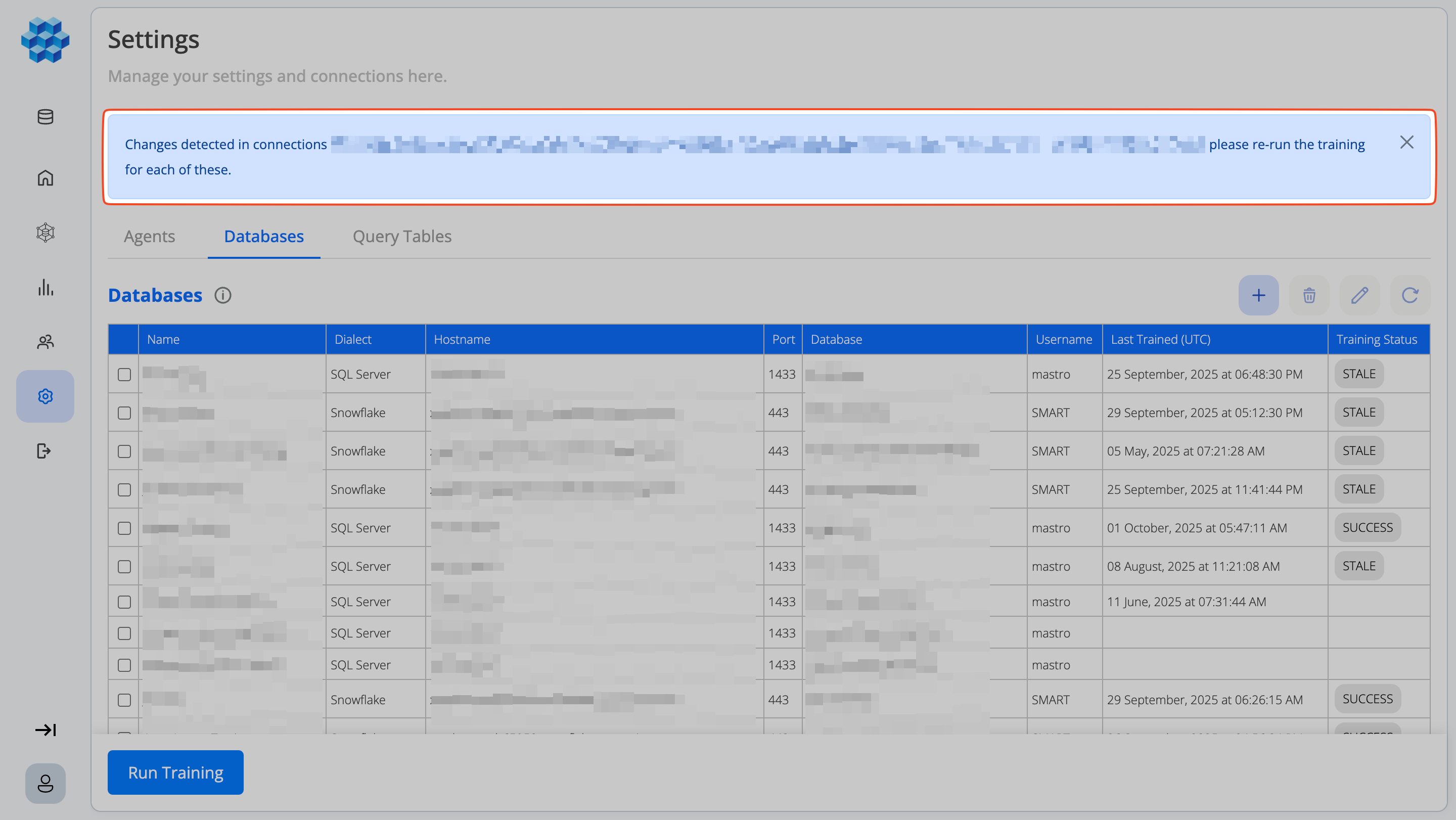
Run Training
Training can be triggered from either the Databases tab or the Query Tables tab on the Settings page.
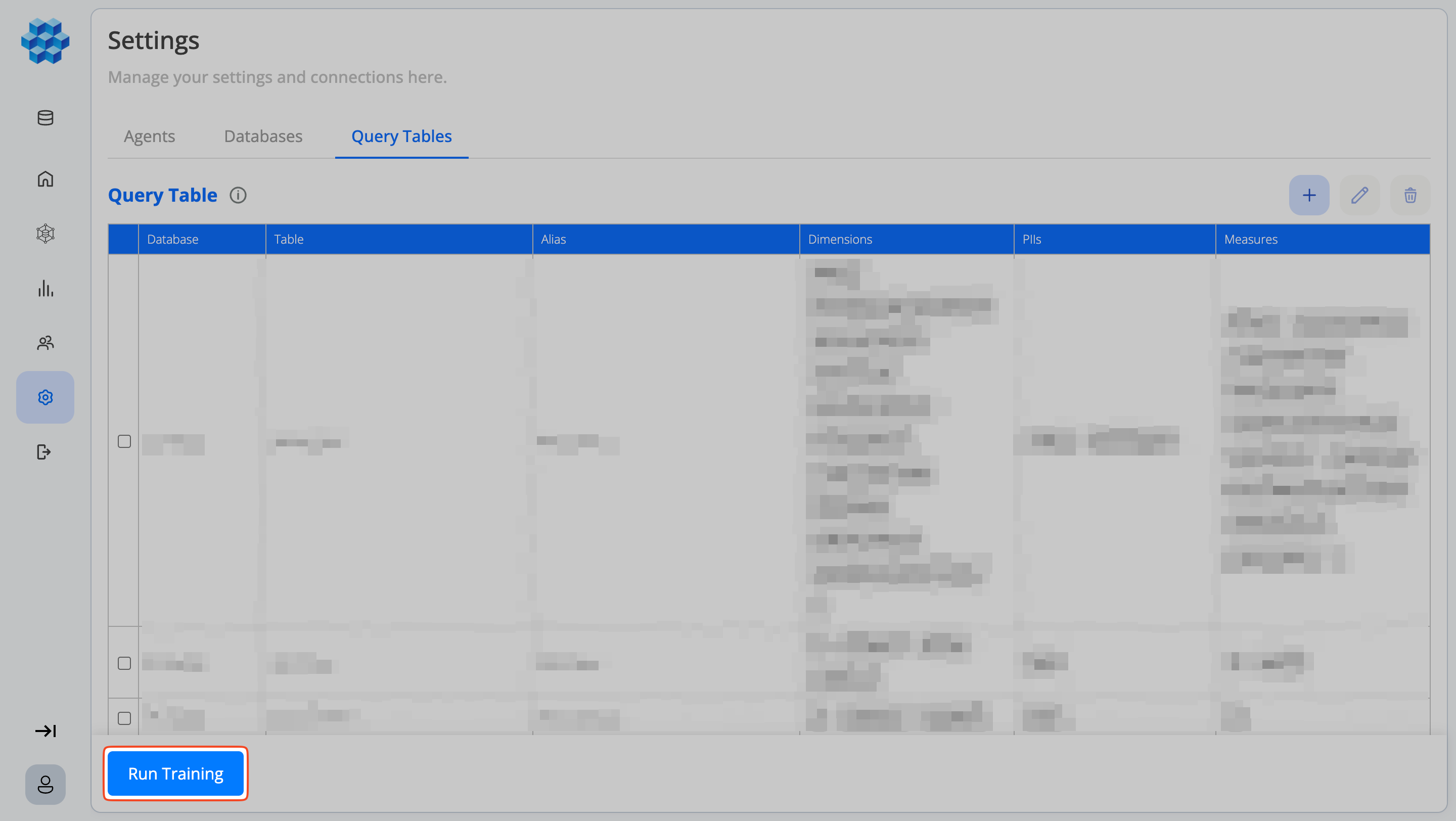
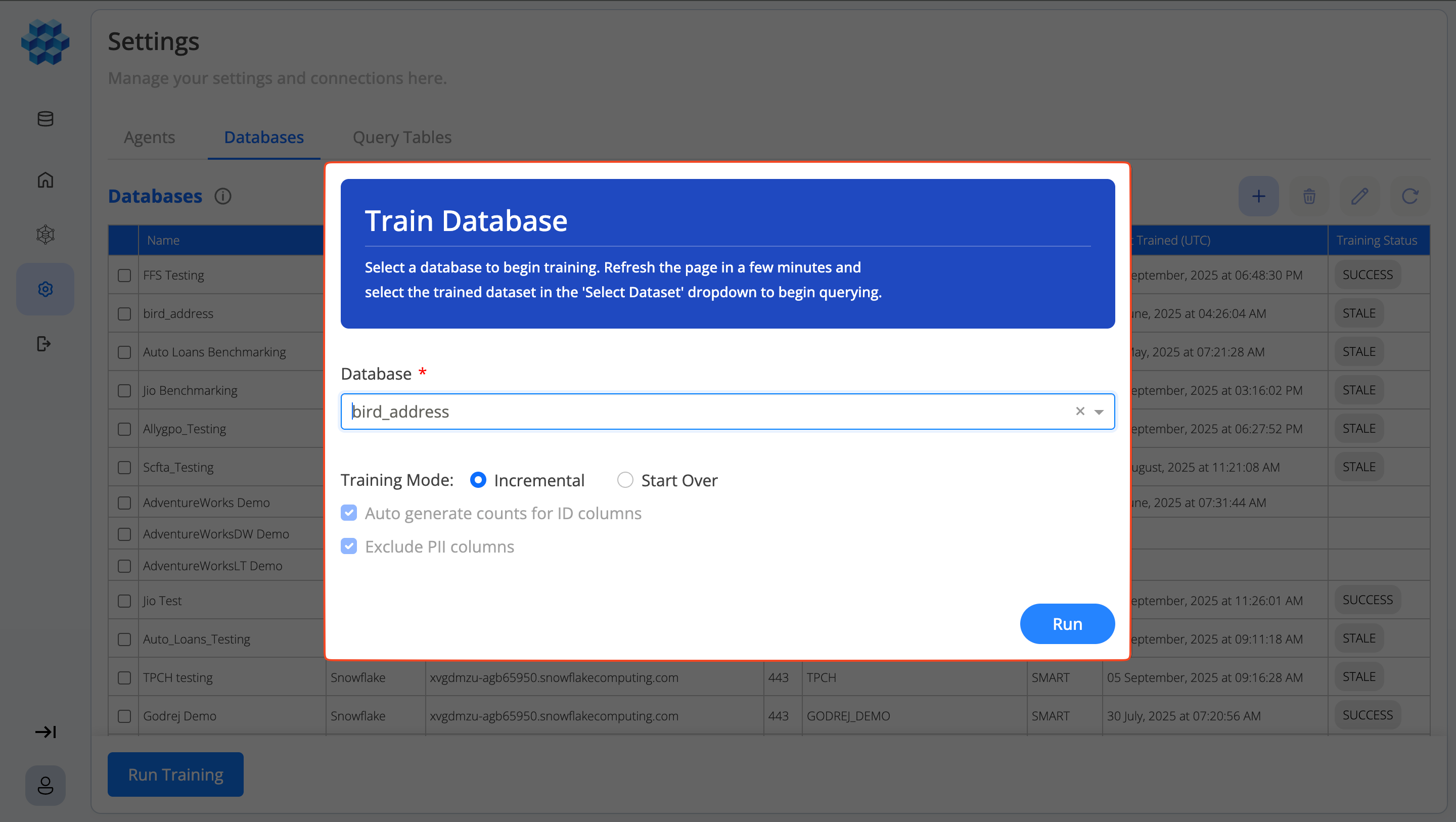
- Click Run Training.
- A popup window appears.
- Select the database you want to train.
- Click Run to start the process.
- Refresh the page after the process completes (roughly 30–60 minutes depending on the database).
- Go to the Select Dataset dropdown and choose your newly trained dataset to start querying.
Global Training
In addition to training each connection separately, you can run global training to combine several already-trained connections into a single, unified catalog. This catalog powers a multi-dataset MCP server, so one AI assistant can query across all of those datasets.
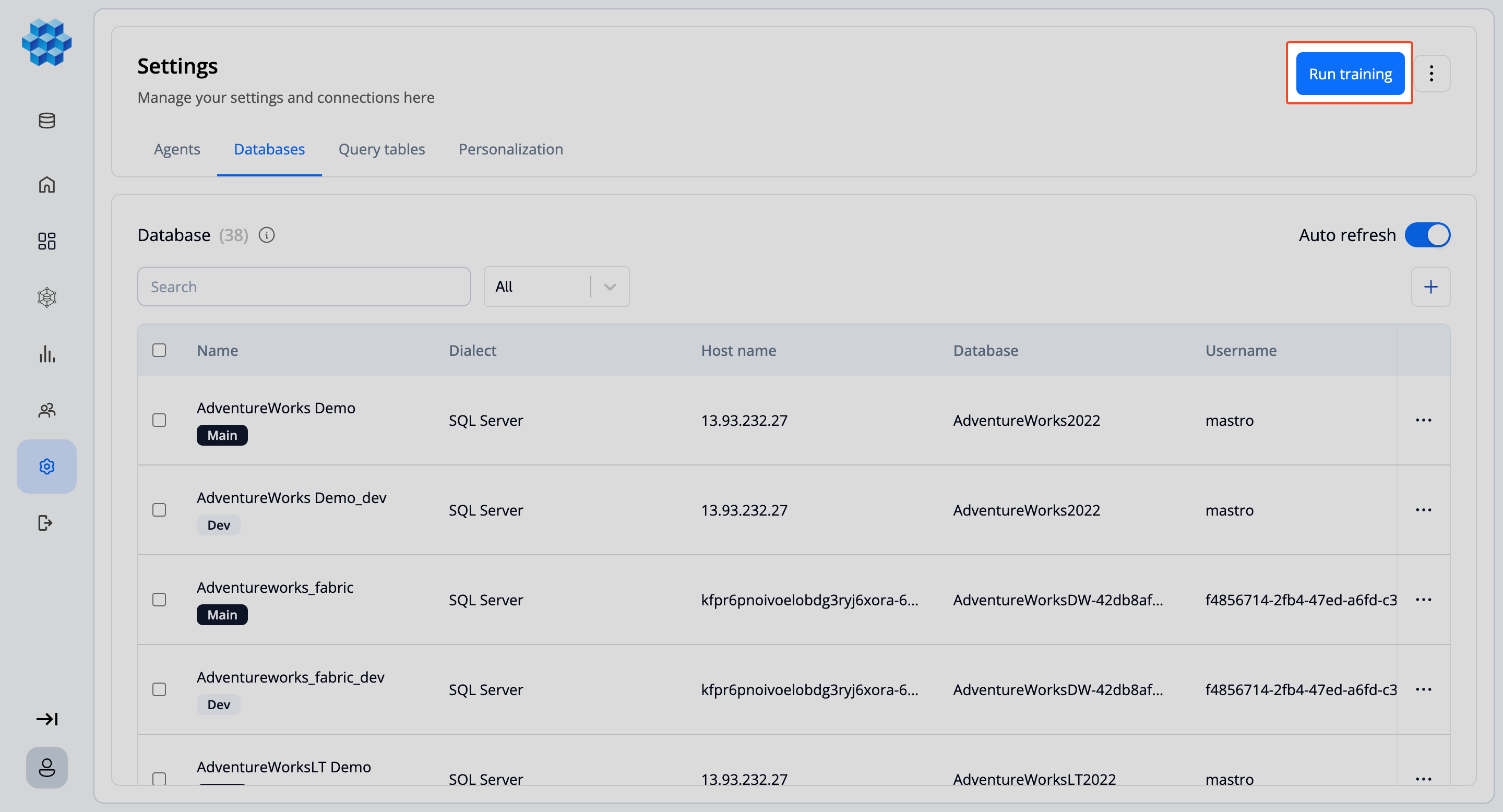
- On the Databases tab, click Run training.
- In the Train database dialog, select All databases from the dropdown.
- The dialog lists your connections in two groups — those that are up to date (already trained) and those that need training. Every connection must be individually trained first; the run is enabled only once nothing remains in the "needs training" group.
- Click Run training to build the combined catalog.
Note
Global training requires an active MCP license key for your tenant. Dev connections are excluded, and some sources (for example, Cassandra) cannot be included in the combined catalog.
Training Status
When training is in progress:
- The dataset cannot be queried (the dataset dropdown will be empty).
- Training cannot be triggered again until the current run completes.
Once training completes:
- All updates — new databases, schema changes, or semantic feedback — are applied and available for querying.
- Re-training is not allowed unless further changes are detected.
- The Last Trained timestamp (UTC) is updated for the database connection.
Feedback Cycle
Training should be treated as a cyclic process:
- Perform initial training after connecting the database.
- Explore the semantic model:
- Dimensions
- Simple Measures
- Custom Measures
- Join Relationships
- Add or modify elements in the semantic model.
- Save all changes once they are finalized.
- Re-run training to incorporate the changes into the semantic model.
Testing Saved Queries
After training or tuning a connection, you can validate it by running a batch of saved queries against it — a quick regression test that checks the model still produces the expected results.
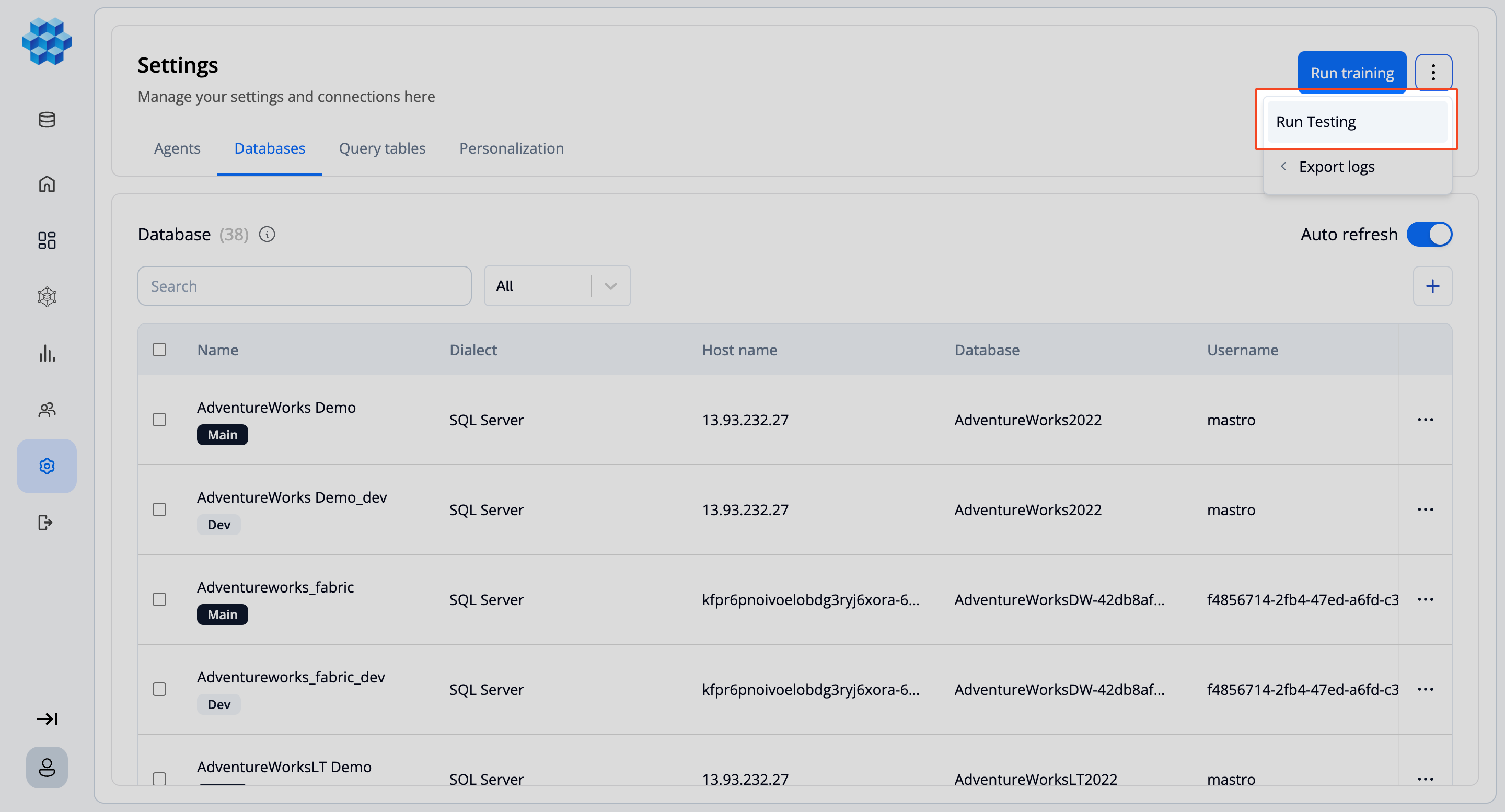
- On the Databases tab, open the ⋮ menu and select Run Testing.
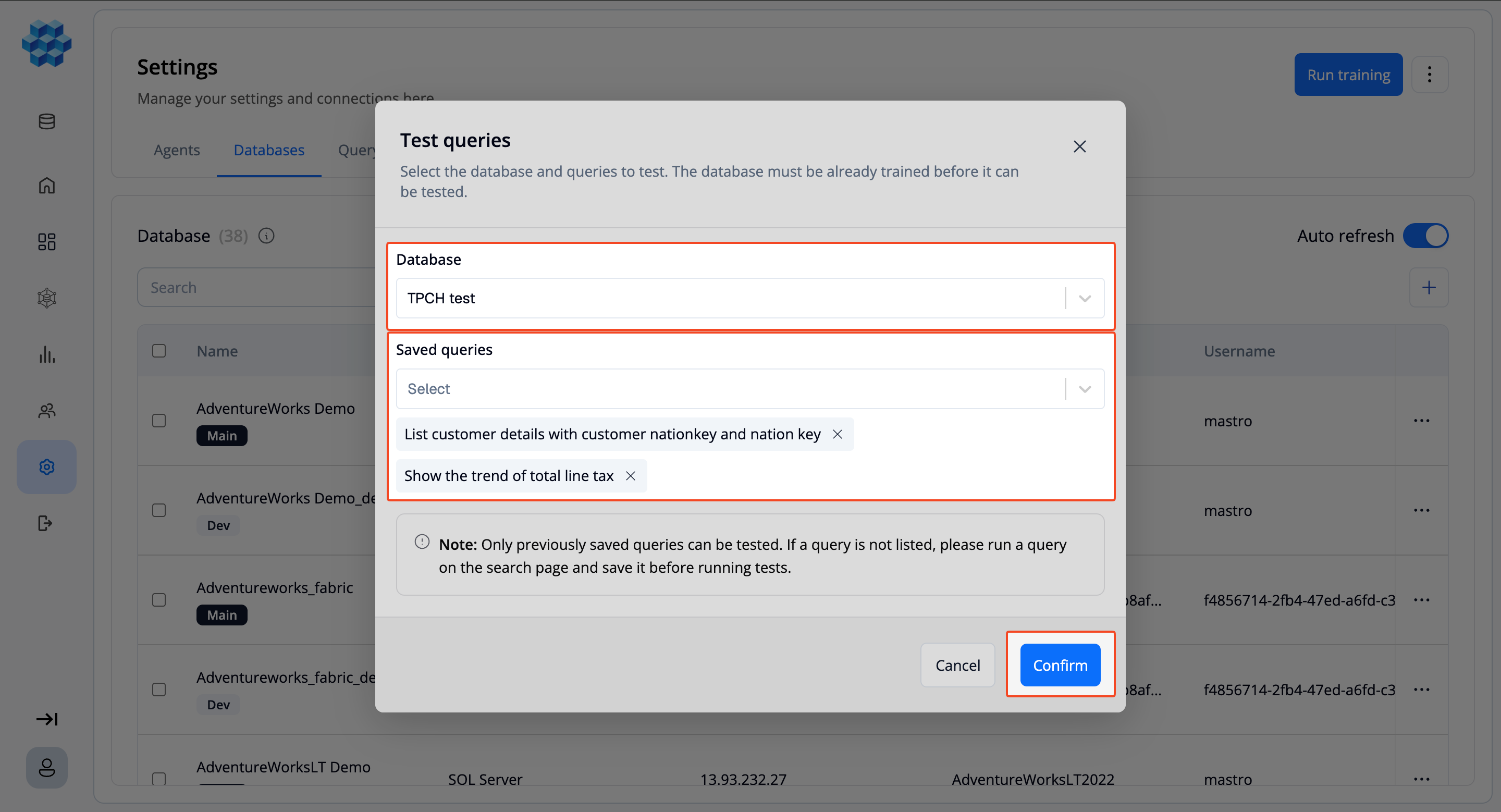
- In the Test queries dialog, choose the database (it must already be trained) and select one or more saved queries to run.
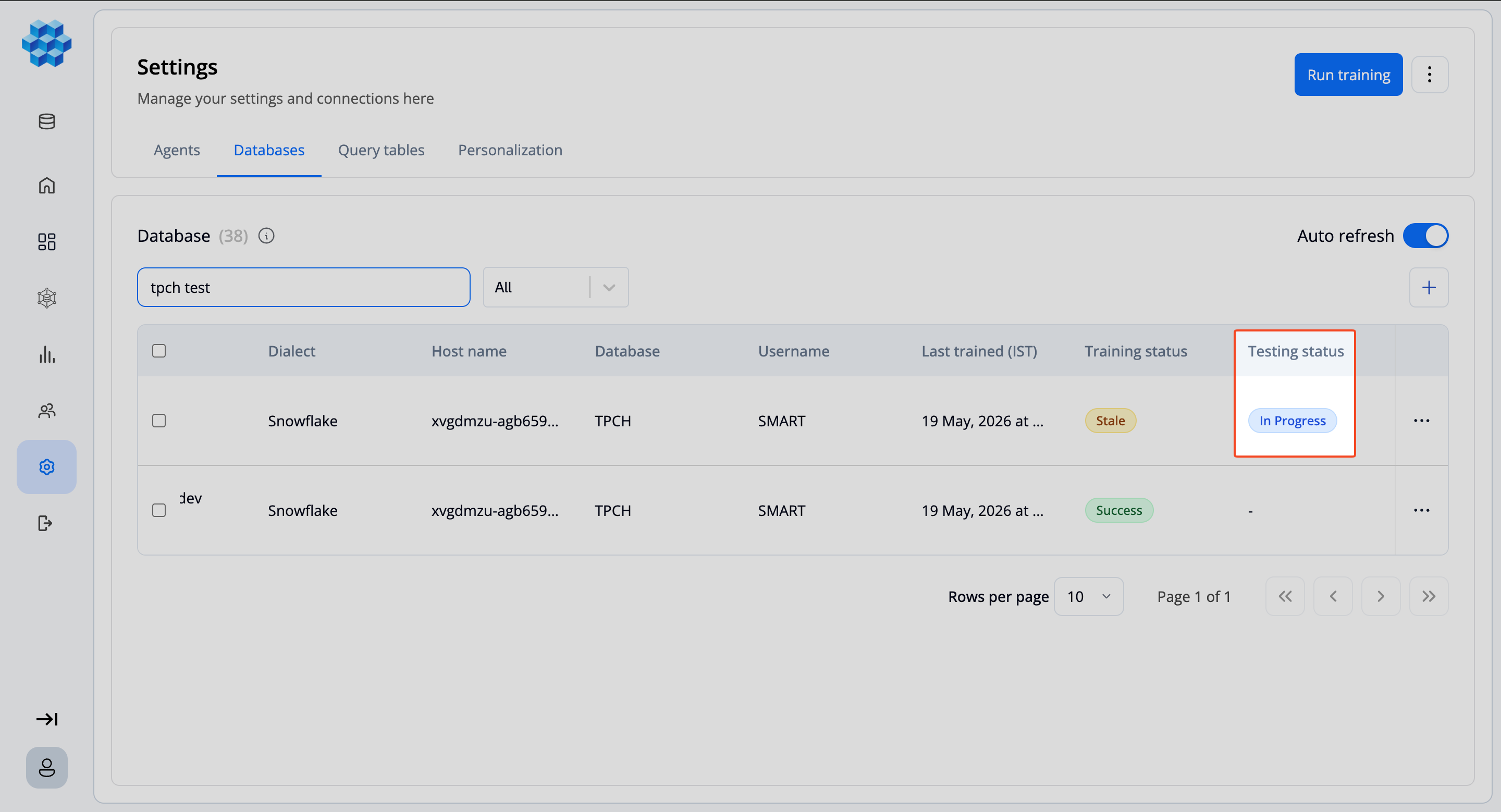
- Click Confirm. Testing runs in the background, and the connection's testing status shows In Progress.
- When it finishes, the testing status becomes Download Report — click it to download a CSV of the per-query results.
Notes
Only queries you have previously saved from the search page can be tested. If a query isn't listed, run and save it from the search page first. Training must have completed successfully before testing can begin.
Prior Knowledge
Incremental Training
Tursio preserves user configurations from prior training runs, preventing overwrites for:
- Aliases
- Custom measures
- Dimension/measure feedback
- Accepted joins
Schema Constraints
Whenever accessible, Tursio automatically extracts referential constraints from metadata and converts them to equivalent LEFT JOINs in an Accepted state.
- Supported databases include PostgreSQL, SQL Server, Azure SQL, Snowflake, Oracle, and Azure Databricks, with more to be added soon.
- Composite keys are handled via conjunctive (multi-column) join conditions.