Context Tuning
Tursio infers a shared context graph for structured data search. However, the context is nuanced for each organization. Therefore, we have designed a context tuning process to refine the context graph (dimensions, measures, descriptions, glossary, ontology, join relationships, and business rules) that Tursio uses to interpret queries. The goal is to capture how people naturally think about and ask data within their organization, and make Tursio's structured data search match that expectation as closely as possible.
Typically, we need context tuning when test questions return undesirable results — for example, a query that uses the wrong join, selects the wrong column, or misinterprets a business term such as "revenue". Tuning corrects this behavior so that the questions return consistently correct results. This is a collaborative process with the Tursio team. Users run sample questions and share the query history with feedback. The Tursio team tunes the context and provides it to users to import and re-test. This process is repeatable for new use cases or until the results are satisfactory:
- Set up and train — add query tables, run training, and review the recommended joins.
- Test and feedback — run sample questions, export the query history, add any comments, and share both the query history and the context with the Tursio team.
- Import and re-test — import the tuned context, re-test, and iterate further if needed.
Step 1 — Add query tables and train
- Add Query Tables. Query Tables define which tables and views Tursio can query for a database. See Query Tables.
-
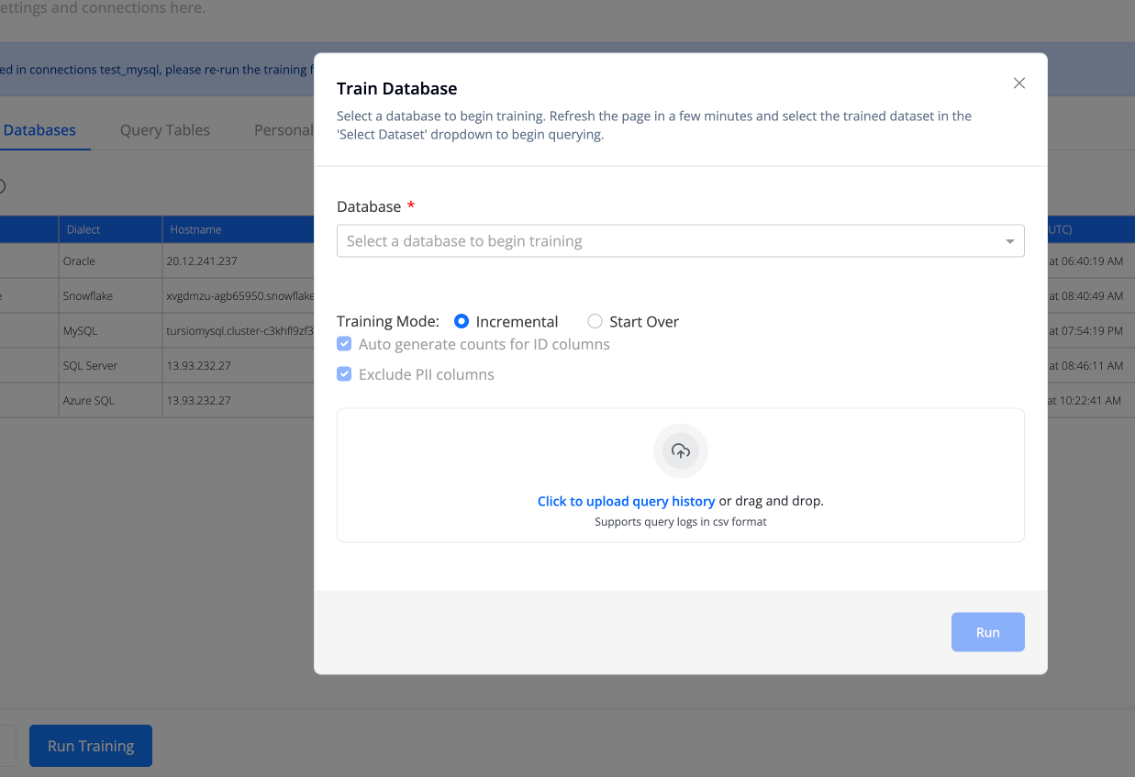
Run training. From the Settings page, run training for the database and refresh the page once it completes (roughly 30–60 minutes, depending on the database). See Training. Incremental training preserves prior configurations — aliases, custom measures, and accepted joins are not overwritten.
-
Review and accept the recommended joins. On the Context → Join Relationships tab, Tursio displays the joins inferred from the schema. Mark each one Accepted or Rejected, and add any missing joins. Pending and rejected joins are ignored, so accepting the joins that reflect the data model before testing is essential to getting meaningful results.
Note
Changes to join relationships take effect only after re-training. Once you accept, reject, or add joins, re-run training before moving on to testing.
Step 2 — Test and give feedback
- Run the test questions. Use questions that represent how users actually query the data, such as those involving business terms, which are the most likely to need tuning.
-
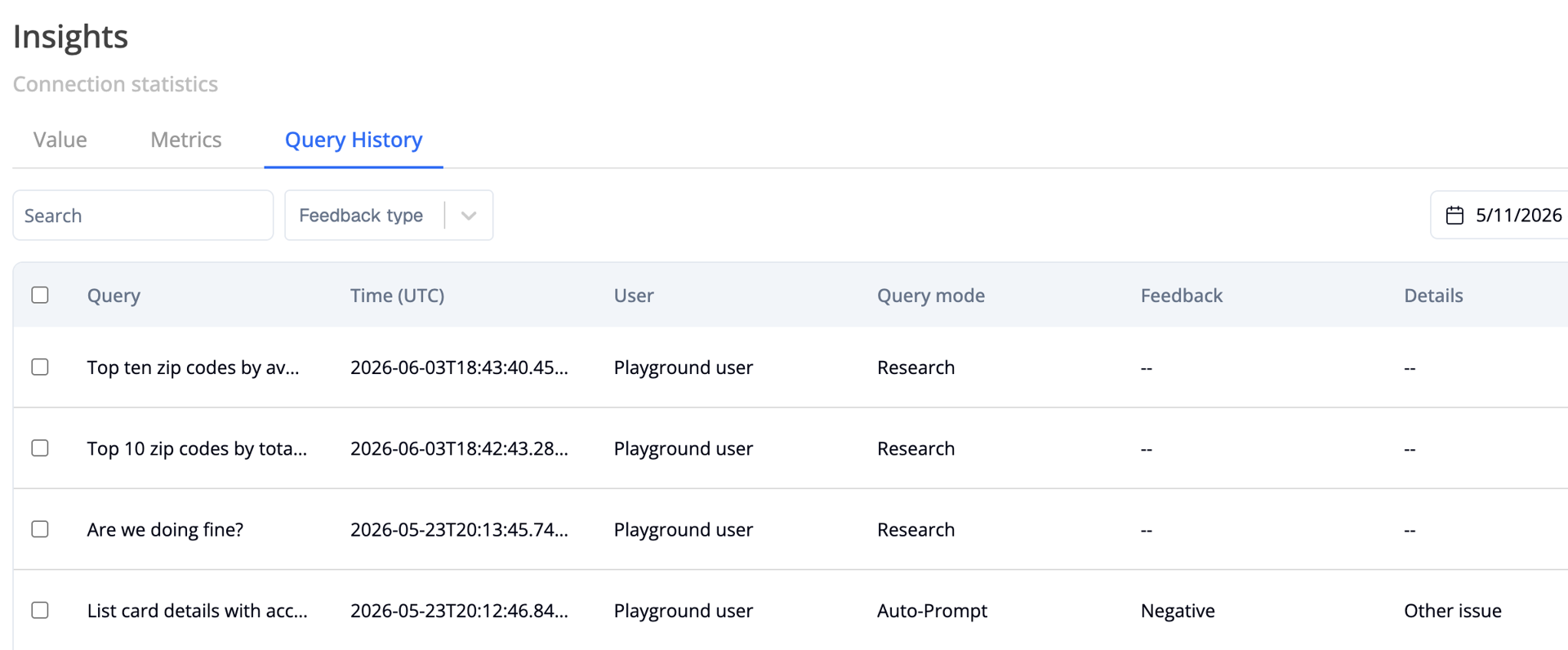
Export the query history to Excel. On the Insights → Query History page, export the test questions and their results to an Excel file.
-
Annotate the Excel with feedback. For any question that looks off, add comments describing what was wrong and what the expected result was. The quality of these comments directly determines the quality of the tuning (see Writing useful feedback below).
-
Export the context zip. Export the current context inferred on the database so the Tursio team can tune it.
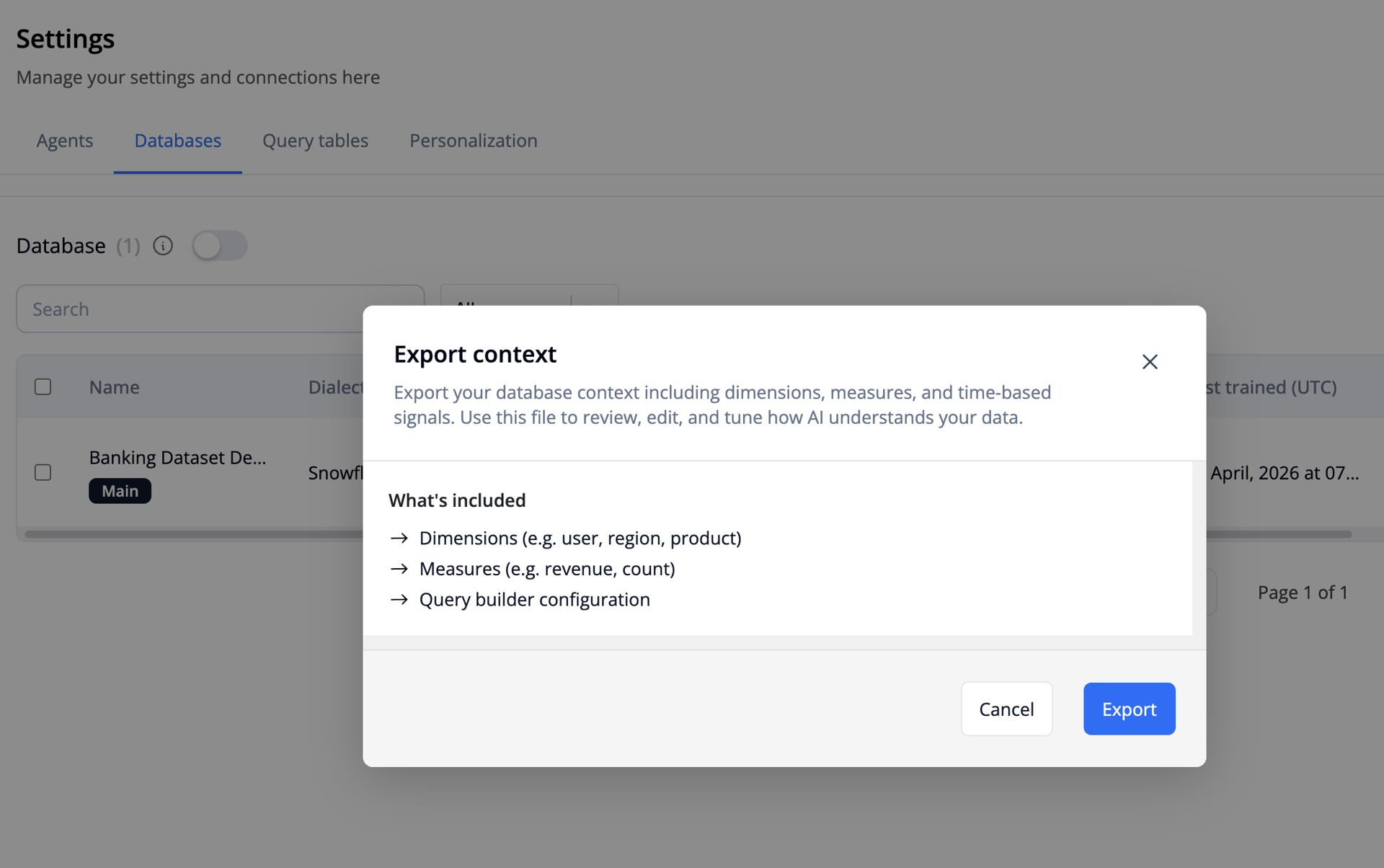
After receiving the query history Excel and context zip files, the Tursio team reviews the feedback, tunes the context, and returns a tuned context file to import in Step 3.
Writing useful feedback
The comments added to the Excel are the raw material the Tursio team uses to tune the context, so specific, actionable feedback produces better results in fewer rounds. Vague feedback requires guesswork; precise feedback maps almost directly onto the tuning that gets applied.
| Vague (undesirable) | Specific (preferred) |
|---|---|
| "Bad number." | "When the question mentions 'revenue', use revenue_amount, not gross_amount." |
| "This is wrong." | "Should join orders to customers on customer_id, not on email." |
| "Doesn't make sense." | "For 'category', prefer sub_category over major_category — it has finer granularity." |
A good comment names the question, states what the query did wrong, and states what it should have done instead — ideally referencing the specific columns, joins, or terms involved.
Step 3 — Import the tuned context and re-test
-
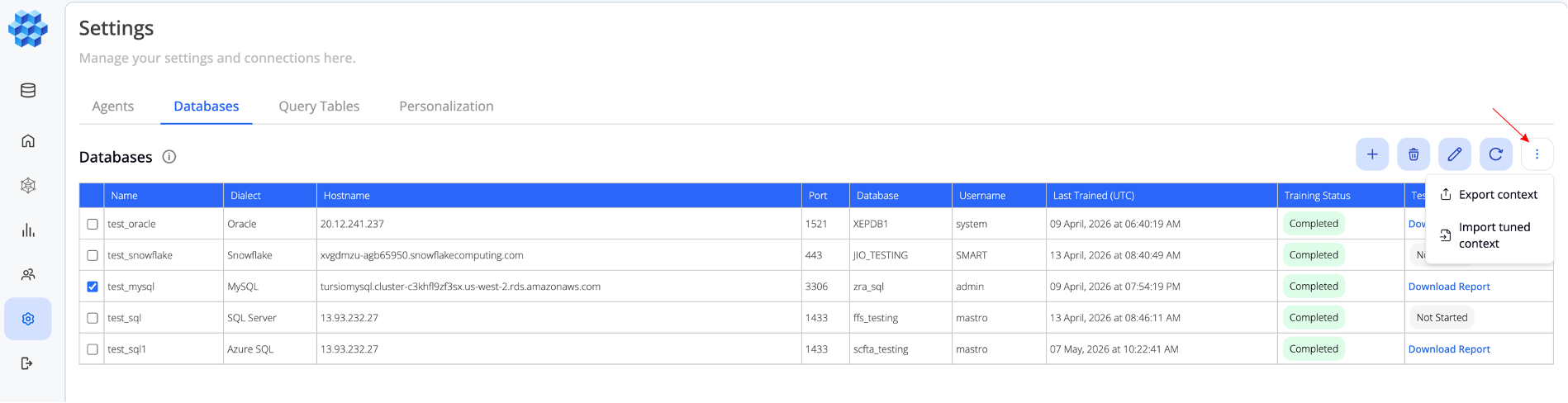
Open the import dialog. Go to the Settings page, open the Databases tab, click the ⋮ (more options) button, and choose Import tuned context.
-
Upload the tuned file. In the modal, select the correct database from the dropdown and upload the tuned
query_table.jsonfile returned by the Tursio team.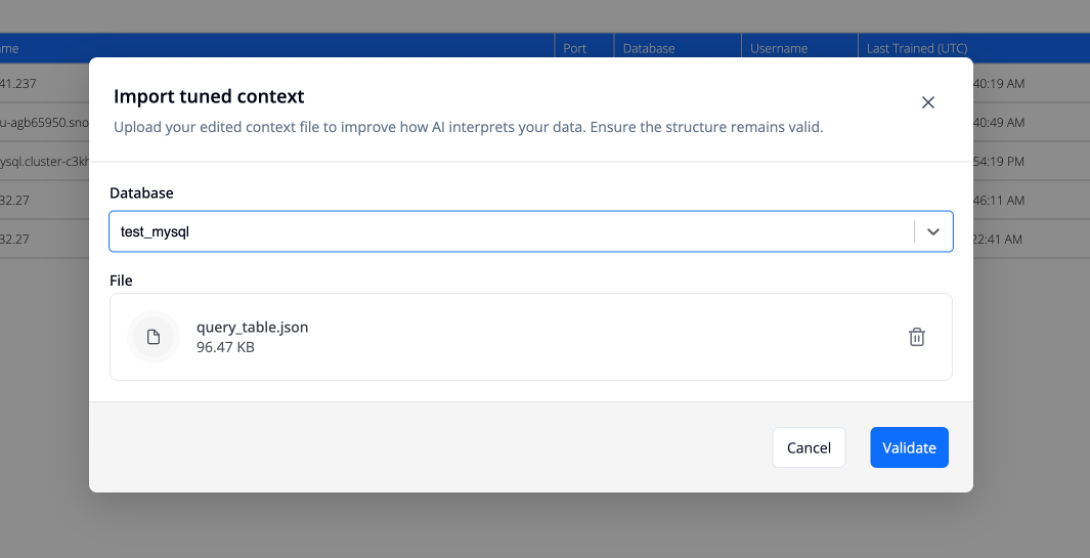
-
Validate and apply. Click Validate and wait for the validation status. Once validated, click Apply changes.
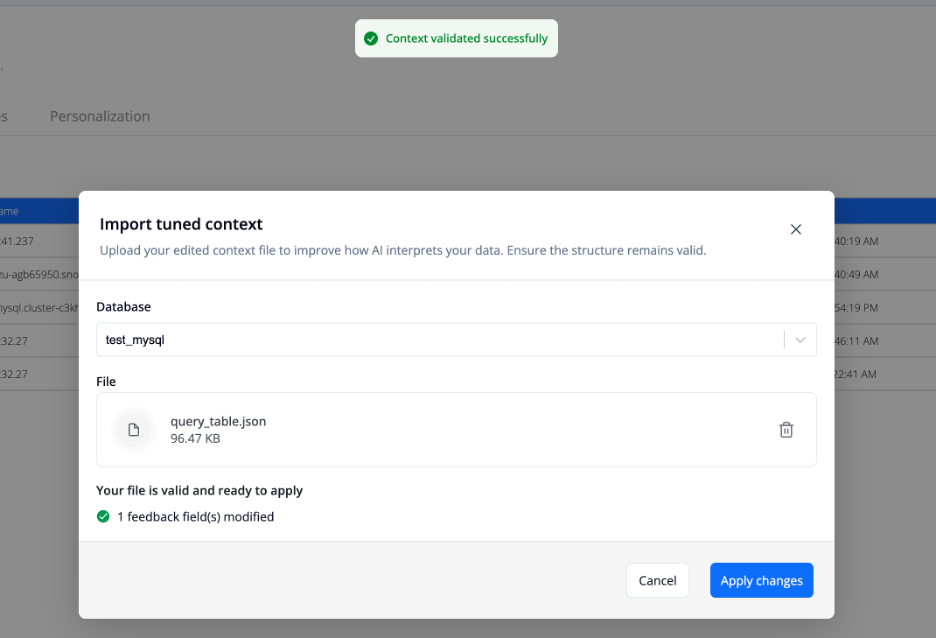
-
Refresh the page. The database training status will now show Stale. This is expected — it indicates that the newly imported context still needs to be trained in.
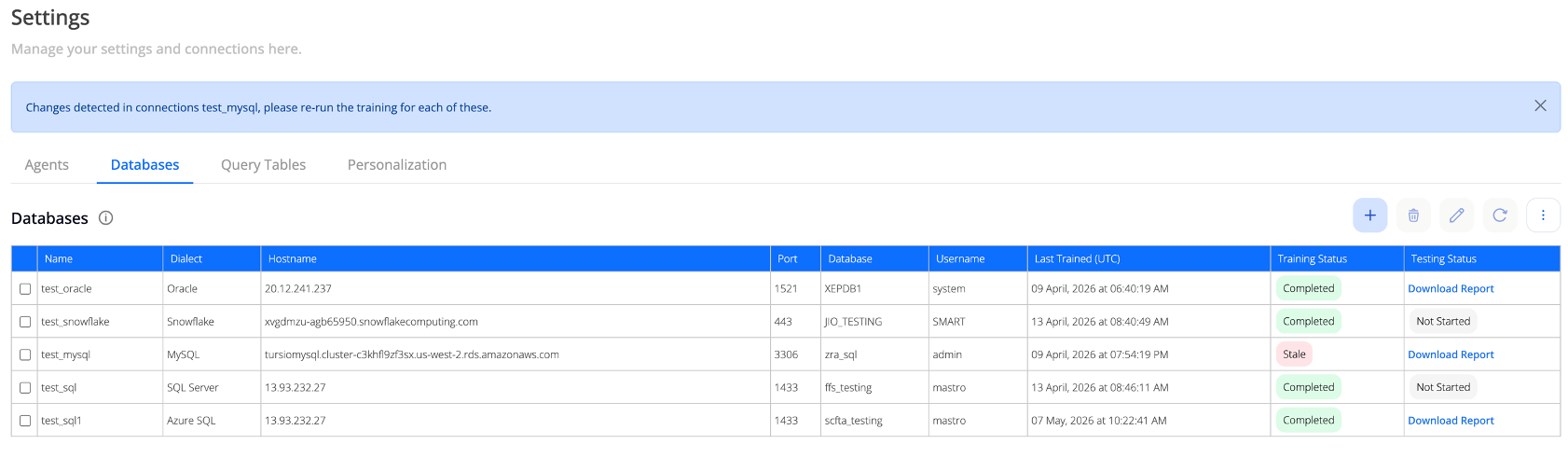
-
Run training. Click Run Training, choose the database from the dropdown, and start the run (around 30–60 minutes). The dataset cannot be queried while training is in progress.
- Re-test the questions. Once training completes, run the sample questions again and compare the results against what was expected.
- Iterate until satisfactory. If some questions still need improvement, repeat Step 2 — export a fresh query history, comment on the questions that are still off, and send another round to the Tursio team. Continue the loop until the test questions consistently return correct results.