Tursio MCP Server
The Tursio MCP Server connects AI assistants like Claude, ChatGPT, and Copilot to your Tursio engine. It uses the open Model Context Protocol (MCP) standard to let these AI tools search and query your data.
Prerequisites
This guide covers only the MCP server setup. Make sure the Tursio platform (Docker or Kubernetes) is already deployed and running before you set up the MCP server. See the Setup Guide for platform deployment instructions.
Architecture Overview
This architecture gives AI assistants access to Tursio's search and data capabilities. Here's how it works:
Architecture Diagram
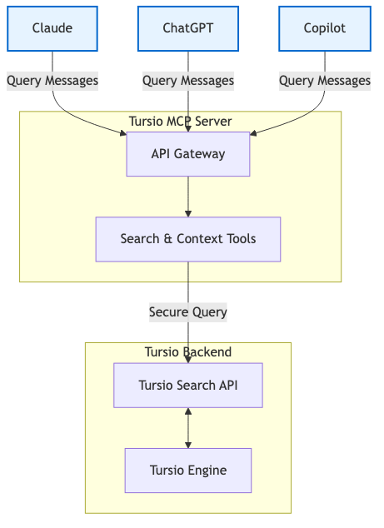
The diagram shows:
- AI assistants (Claude, ChatGPT, Copilot) handle user questions and manage conversations.
- Tursio MCP Server acts as the API gateway, exposing search tools through standardized MCP resources.
- Tursio backend (Search API and Engine) processes queries and returns your data.
Configuration
Follow these steps to connect your AI assistant to the Tursio MCP Server.
Overview
This integration lets AI assistants query your Tursio data using plain English questions. The MCP server translates your natural language questions into database queries using semantic context.
With this setup, your AI assistant can:
- Understand your business entities, relationships, and metrics.
- Interpret analytical questions using semantic context.
- Pull insights directly from your Tursio data.
Before you start, make sure your MCP Context is fully defined.
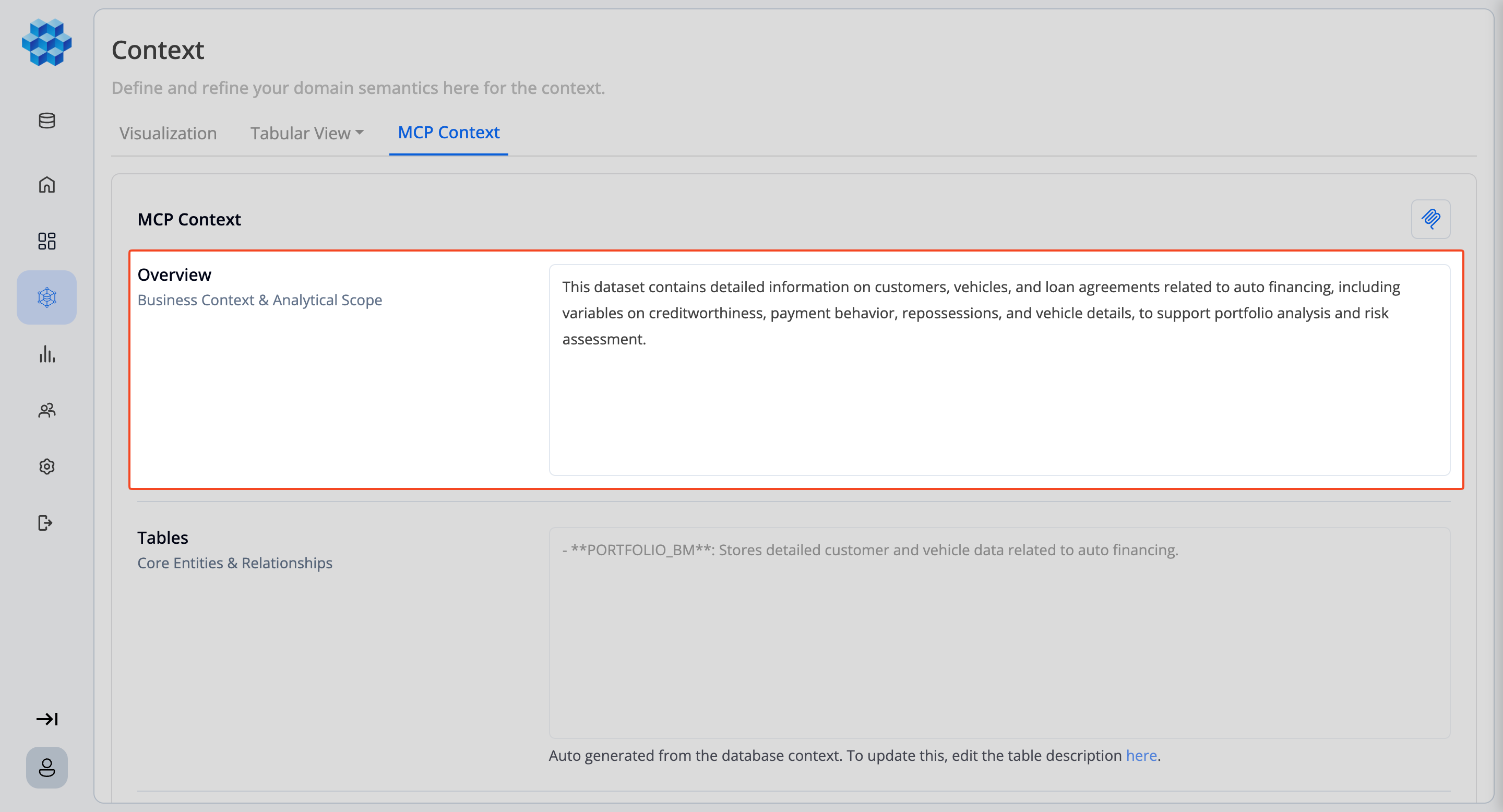
Step 1: Prepare Your MCP Context
Open the MCP Context tab for your dataset. The MCP Context teaches the AI assistant how to understand and query your data. Most sections are auto-generated from your semantic model and table descriptions — review them, edit any section to refine it, or use Reset to default to restore the generated version.
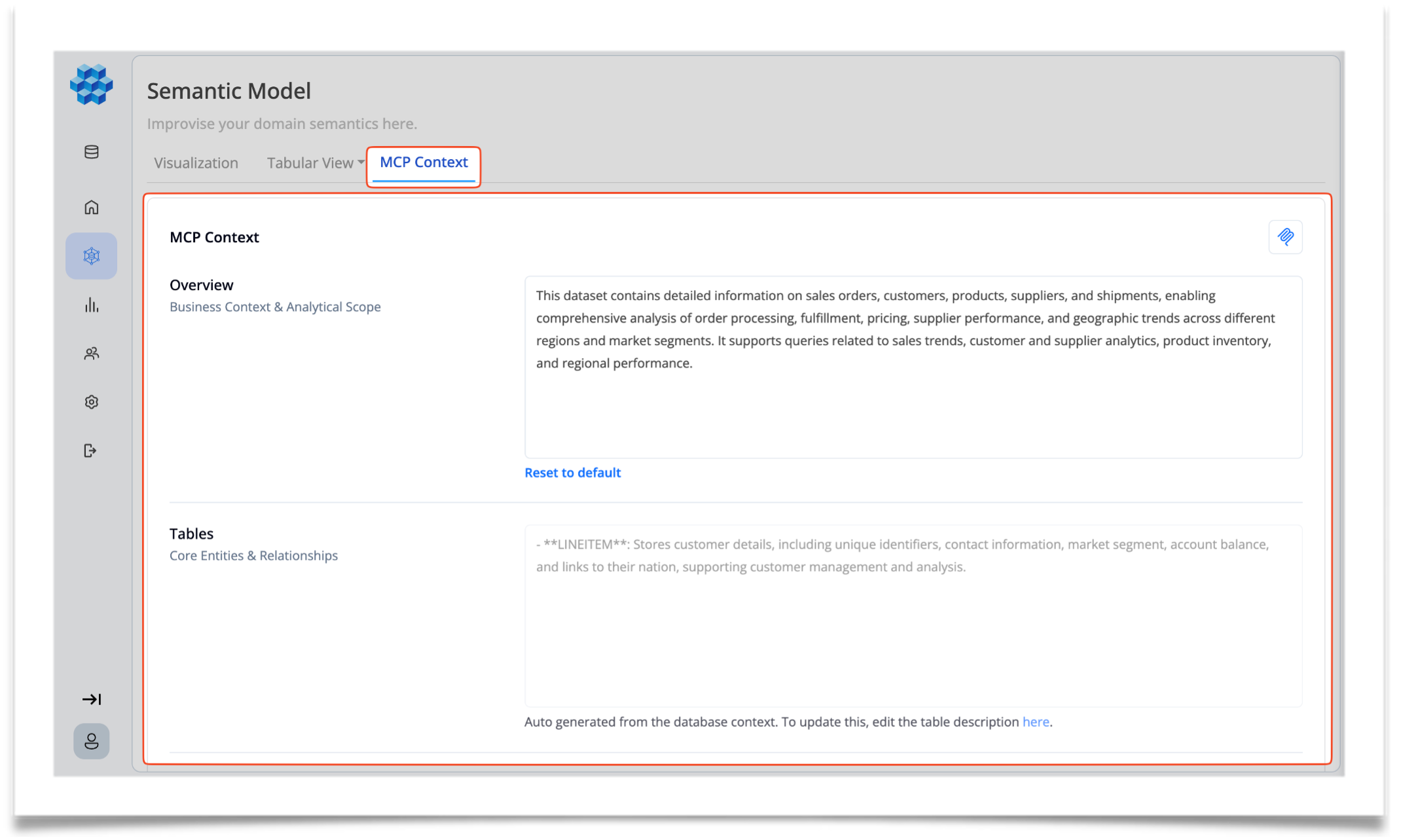
Your MCP Context should include:
- Overview: Describe your business and what kind of analysis you need.
- Tables: List the main entities in your data model and how they relate to each other.
- Columns: Document each table's attributes and column definitions.
- Measures: Define metrics, aggregations, and KPIs for analysis.
- Example Questions: Show sample questions users might ask.
- Additional Context: Add any business rules or special instructions.
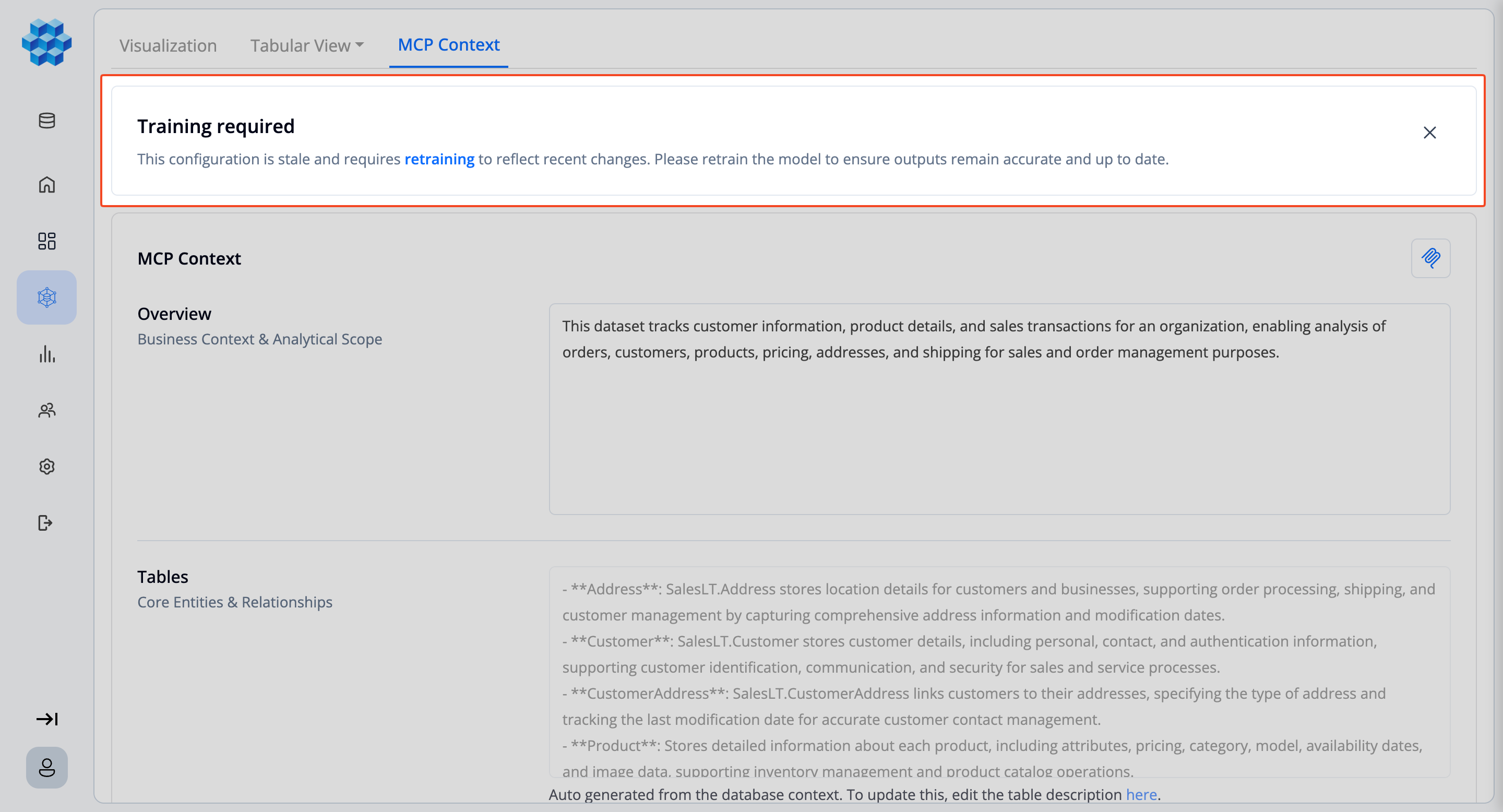
Training Required
If a connection's model changes, the MCP Context shows a Training required banner. Re-train the connection so the deployed MCP servers reflect your latest context.
All Databases
On SaaS deployments you can also prepare an All Databases context, which deploys a single MCP server spanning every dataset. In this mode you edit one combined Business Context section instead of per-connection sections.
Once your MCP Context is ready, move on to configuring the MCP server.
Step 2: Connect Your AI Assistant
Choose your assistant and follow the setup instructions:
- Connect Claude to the MCP Server
- Connect Copilot to the MCP Server
- Connect ChatGPT to the MCP Server
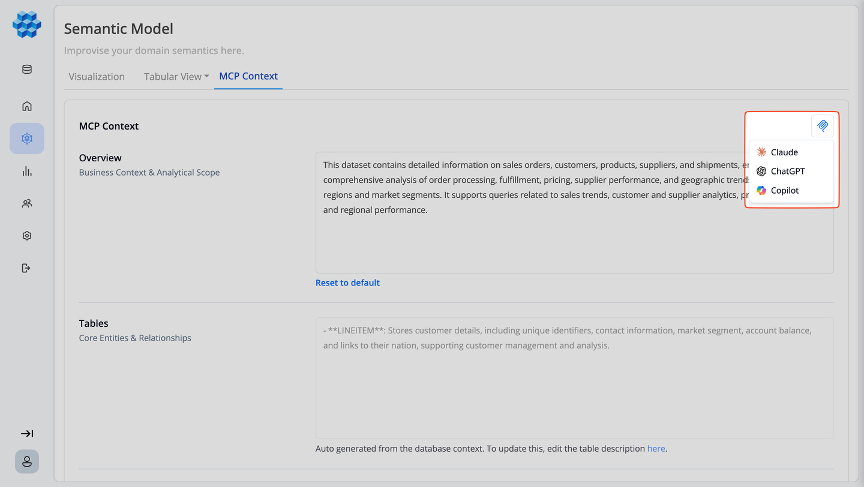
Each guide covers installation, configuration, and testing. Use the Export menu on the MCP Context tab to generate a server package for a specific assistant (Claude, ChatGPT, or Copilot).
Note
On SaaS, each assistant can have only one active deployment. To change a deployed server, remove the existing deployment first, then redeploy.
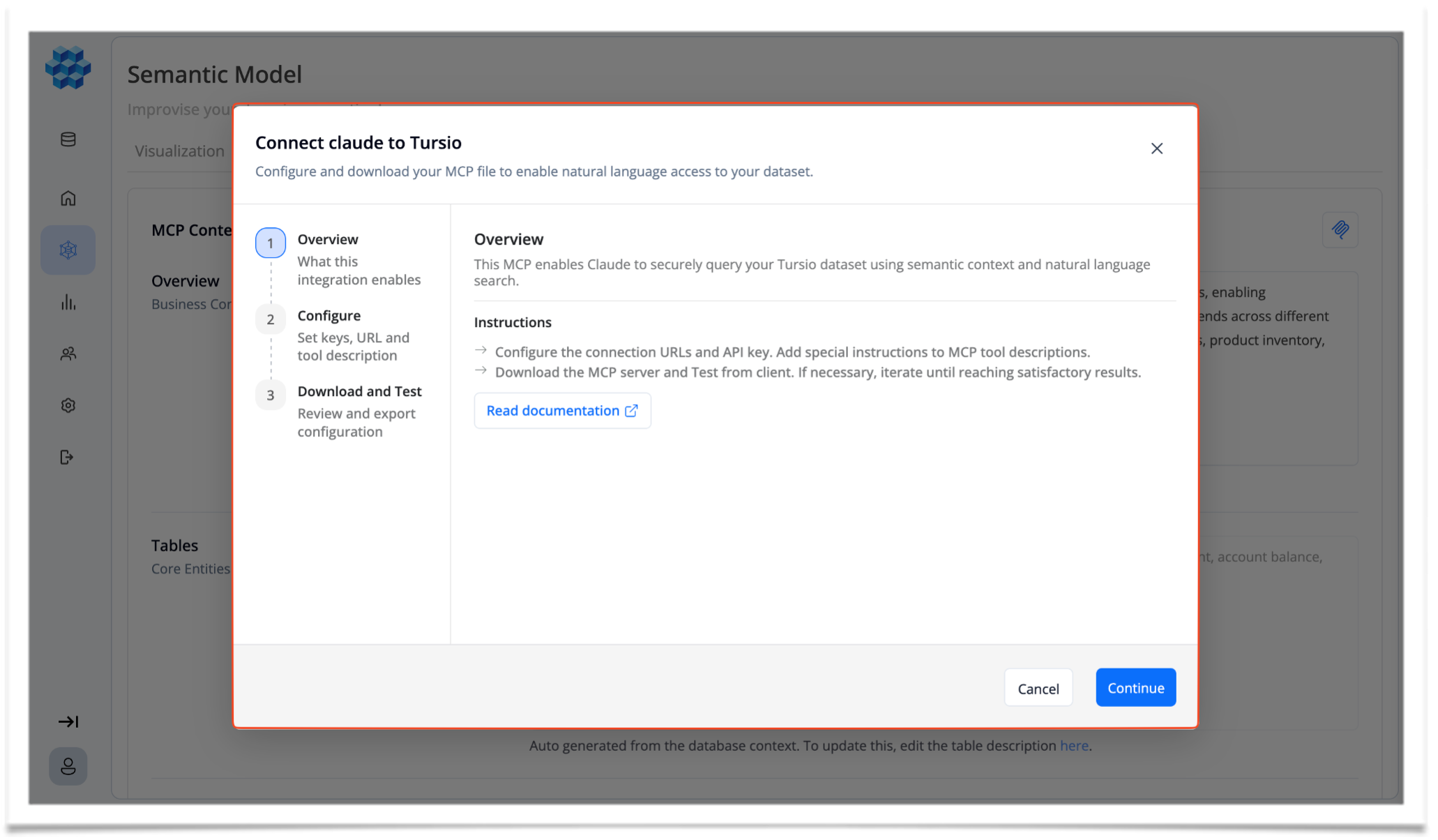
Step 3: Configure the MCP Server
Enter your connection details so your AI assistant can talk to the Tursio MCP server.
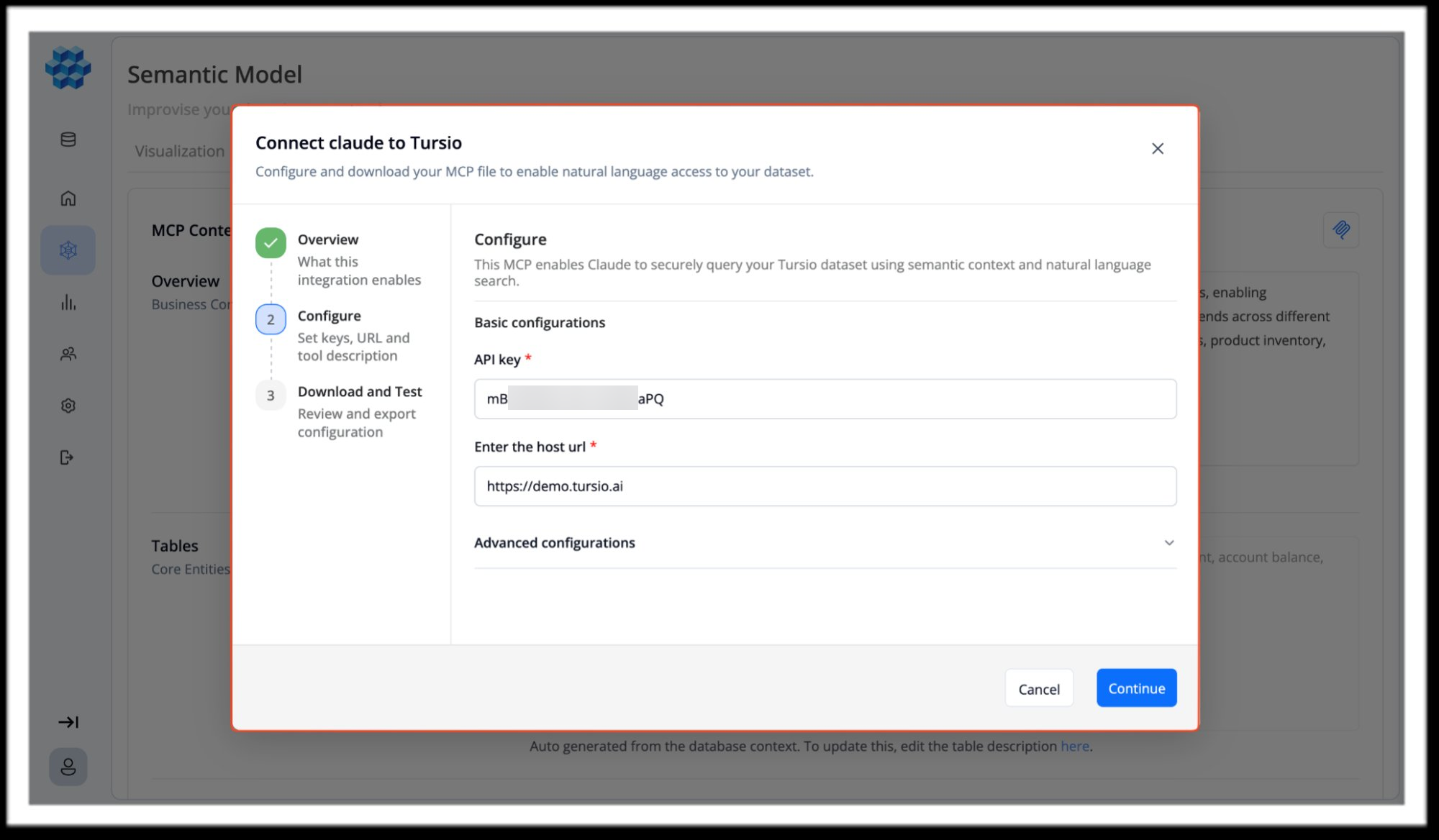
Basic Configuration
- API Key: Your authentication key for the MCP server.
- Host URL: Where your MCP server is hosted.
Advanced Configuration
- Semantic Context Tool Description: Instructions for how the assistant should retrieve and interpret context from your dataset.
- Tursio Search Tool Description: Instructions for how the assistant should perform searches and queries.
Step 4: Download and Test
After you finish configuration:
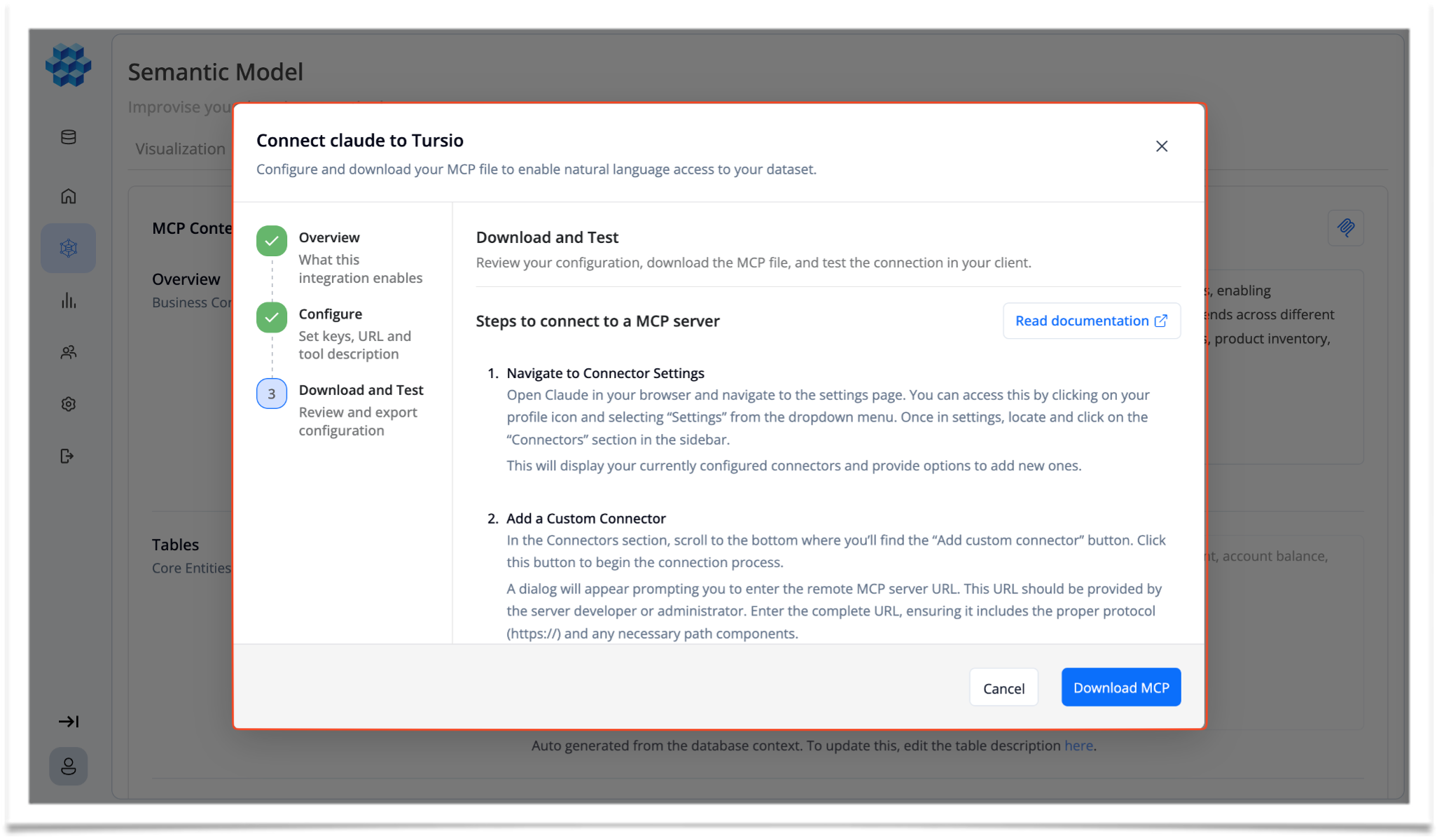
- Download the Tursio MCP Server package.
- Start the MCP server locally or in your environment.
- Connect your AI assistant using the exported configuration.
- Run some test queries to make sure everything works.
- Adjust context descriptions or tool instructions if needed.
See Deploy the MCP Server for step-by-step deployment instructions.